SoluM ESL for Maxis Stores

ESL Components
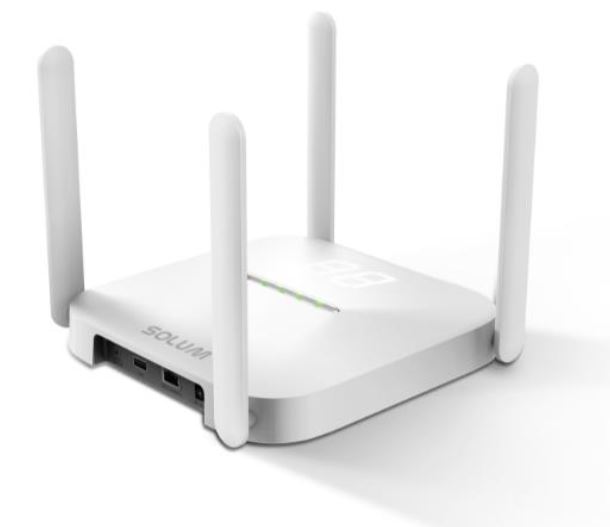
Newton Gateway
The Newton Gateway is the wireless gateway that connects wirelessly to the digital labels from the AIMS Cloud software. It is placed either in the ceiling in the middle of the retail store or at the back room. It requires internet connection to function properly. The coverage of each gateway is approximately 6,000 sq feet.
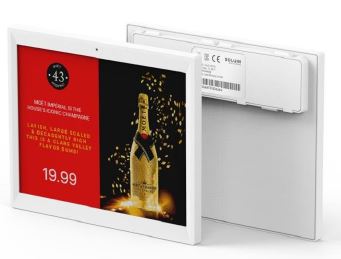
Newton Core ESL 6.1" (4 colors)
The Newton Core 6.1" 4 color label is the selected type and size of label for Maxis stores. The label display is e-ink and has 4 colors ( Red, White, Black, Yellow ) . It is completely wireless and battery operated. Battery is estimated to last about 10 years. Template design is determined by HQ and will be loaded automatically depending on the promotions.
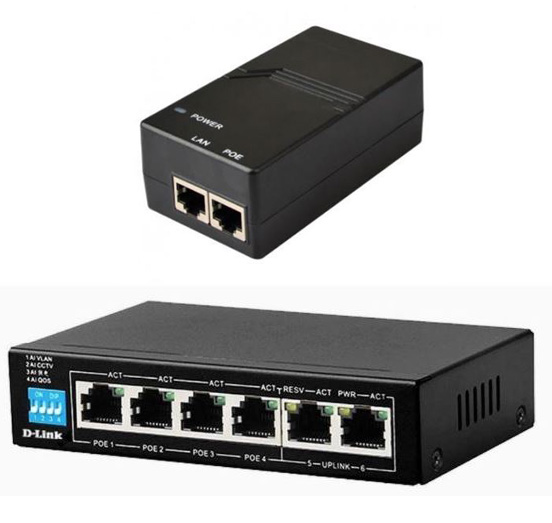
POE Switch / POE Injector
The POE Switch or POE injector will be used to supply power and data to the Newton Gateway. This device will be positioned at the back room close to the server rack. A power point is needed to supply power to this device. Data cable will be connected to store's internet router for internet access.
ESL Video Guide
How to Install AIMS Manager App on Mobile Device
How to assign products to ESL Labels with AIMS Manager App
Settings required to log in to server
IP Address/Domain : asia.common.solumesl.com
Protocol : HTTPS
Server Type : CLOUD
Region : ASIA
Username/Password : Please contact administrator for NEW user creation
AIMS Web Portal
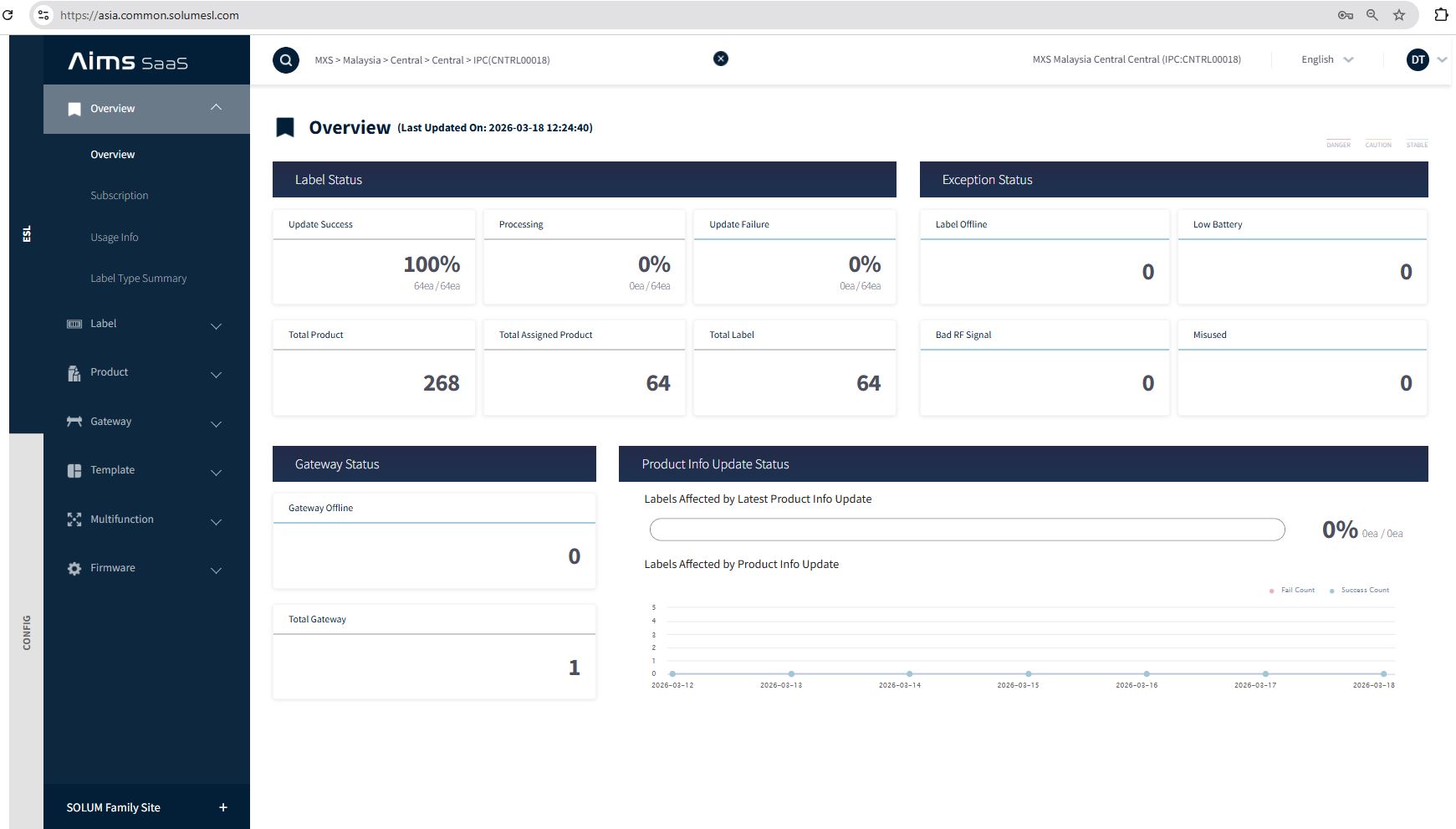
You can use any web browser to log in to AIMS Web portal. From the AIMS Web portal you will be able to see the status of the labels and gateways. You will also be able to see and search for the list of uploaded products in case you are not able to scan the product barcode from the app.
IP Address/Domain : asia.common.solumesl.com
Username/Password : same as app
Frequently Asked Questions (FAQ)
Please contact technical assistance for creation of new user. The contact details are listed below.
Please click on " Forgot your password? " and reset your password via your registered e-mail address
Please contact technical support to request for the store to be assigned to your username.
Please click on the profile icon at the top right corner of your app. Click on Settings and then choose Scanning Type. Change it to Camera & Typing .
Please check the status of the gateway to make sure that there is power and internet connection. You can log in to AIMS portal with the URL asia.common.solumesl.com on any web browser to check the dashboard and the status of gateways and labels. If the gateway is shown as disconnected then please check that the power from POE is switched on. If the gateway has light but still shows as disconnected then please check that there is an internet connection to the gateway. For issues concerning internet connectivity please contact your IT/Network technician.
Please check to see if there are other barcodes on the product. We need to scan the EAN barcode. If correct barcode is scanned but it shows the same issue then please proceed to contact technical assistance to check if the product is registered in the system. Please provide pictures front and back of the product packaging by whatsapp.
Alternatively you can also type in the product SKU instead of scanning the barcode. You can check on the product list in the database by logging in to AIMS web portal.
Please use the app to assign the correct product to the label
Please contact De Tag technical assistance to check on the listed price of the item and we will verify with Maxis HQ and rectify the price accordingly.
There are 4 types of templates currently active. They are Maxis Postpaid, Hotlink Postpaid, Smart Watch and Accessories. Each SKU is pre-assigned to the grouping and the template is automatically selected. Please check that the correct product SKU is chosen. If error still persists then please contact technical assistance for verification.
For any technical assistance kindly contact
De Tag Industry Sdn Bhd
: 03 5191 2280
Copyright © 2026 De Tag